2.1.6. Account and security
This page covers password changes, two-factor authentication (2FA), and passkeys. All of these actions are available from ⋯ (More) → Account.
2.1.6.1. Changing your password
To change your password:
Open ⋯ (More) → Account.
Enter your current password.
Enter your new password.
Repeat the new password for confirmation.
Click Change password.
This allows you to update your password without administrator support.

2.1.6.2. Two-factor authentication (TOTP)
Depending on how your instance is configured, you may be able to enable two-factor authentication using TOTP. TOTP means that, in addition to your password, you confirm your login with a time-based code from an authenticator app.
2.1.6.2.1. Enable 2FA
To enable 2FA:
Open ⋯ (More) → Account.
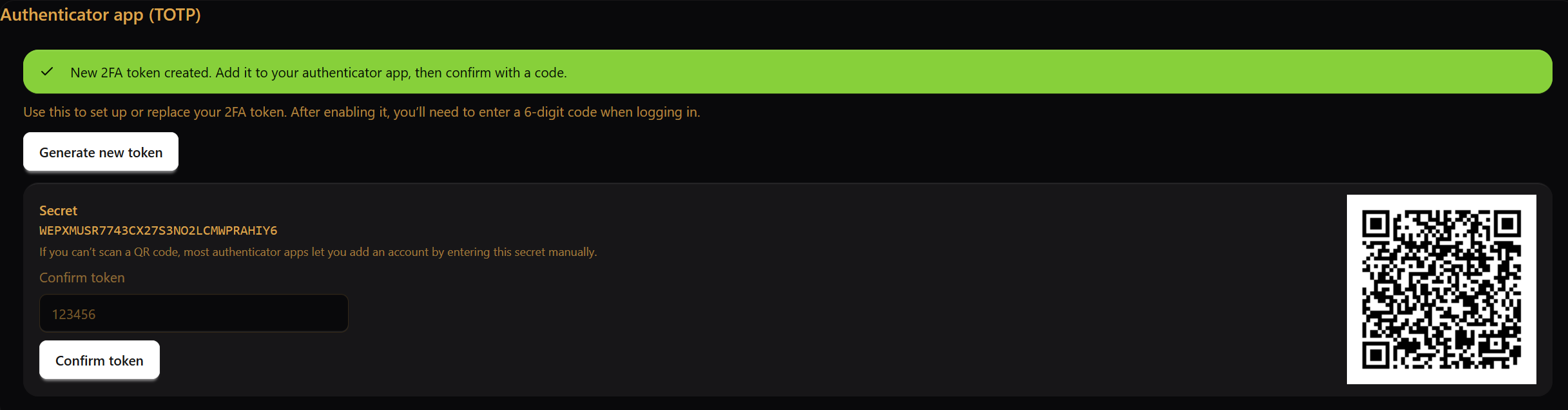
Create a new token.
Add the shown secret to your authenticator app, either manually or by scanning the QR code.
Enter the generated code in the UI to confirm the setup.
2.1.6.2.2. Disable 2FA
To disable 2FA, enter a valid TOTP code in the deactivation field and confirm the action.

2.1.6.3. Passkeys (WebAuthn)
A passkey is a device-based login credential. Depending on your setup, it can be used as an additional login factor.
To register a passkey:
Open ⋯ (More) → Account.
In the Passkeys (WebAuthn) section, click Register passkey.
Follow the system dialog shown by your browser or operating system.
On Windows, this dialog is usually shown as Windows Security. It may ask you to save a passkey for the current site and confirm the action with a PIN or another device method.
Once the flow completes, the passkey is stored on your device.

2.1.6.4. TOTP vs. passkeys
The two features are related but not identical:
TOTP uses a code from an authenticator app.
Passkeys use a credential stored on a device or in a browser ecosystem.
It is often useful to keep a backup option so that you do not lose access if one method becomes unavailable.
2.1.6.5. Password resets by an administrator
If an administrator resets your password, your existing 2FA setup may also be removed. If that happens, log in again and configure your security settings once more.