1.4. Maintenance
There are two ways to create new users or reset their passwords.
1.4.1. Via the web UI
After logging in, the admin user can manage users via the Users section in the navigation bar.
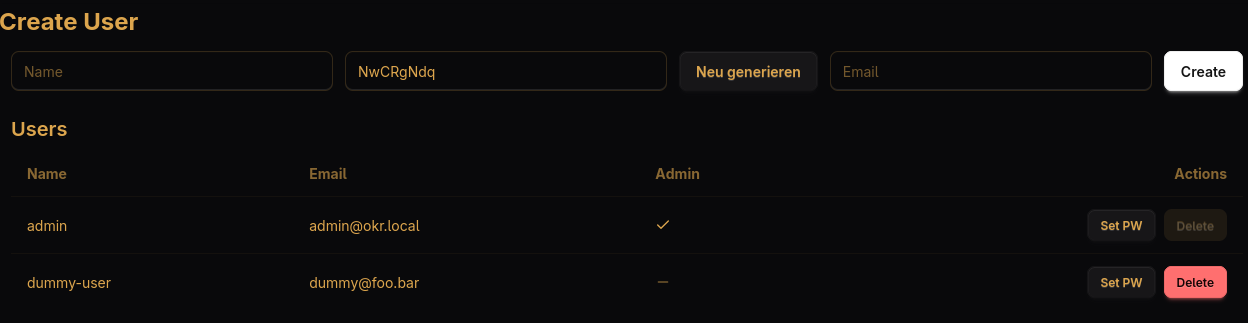
After creating a new user, you should note down the user’s password and send the login data (username, email, password) to them. When the user logs in for the first time, they are asked to change their password immediately.
1.4.2. Using maintenance scripts
The app comes with a maintenance script that allows you to do the same admin actions as with the web interface.
Hint
If you installed the app via docker, you first have to chroot in the running docker container by executing
docker exec -it okr-backend /bin/sh
1.4.2.1. Create users
You can create new users by running
./maintenance_script.py add-user "username" "email@example.com" "password"
1.4.2.2. Reset passwords
You can reset passwords by running
./maintenance_script.py reset-password "username" "new-password"
This also removes the 2FA settings the user previously configured (e.g. TOTP or Webauthn).
1.4.2.3. Generate password hashes
You can reset passwords by running
./maintenance_script.py hash-password "password"
1.4.2.4. Delete users
You can delete an existing user by running
./maintenance_script.py delete-user "username"
1.4.2.5. Promote user to admin
You can promote existing users to admin by running
./maintenance_script.py promote-user "username"
1.4.2.6. Demote admin to user
You can demote existing admins to become a normal user by running
./maintenance_script.py demote-user "username"